Parental controls on phones and YouTube: what to set up at each age
Quick answer
Parental controls are settings on phones, tablets, apps and Wi-Fi that limit what a child can watch, download and buy, and for how long. Turn on the phone's family controls, YouTube Kids or Restricted Mode, app-store age limits and purchase approval. No control catches everything, so explain each one, keep talking, and loosen them as your child grows.
 By the ParentMind team12 min read
Listen to this article
17 min listen · Read by your device's voice
At a glance
- Who it is for
- Parents of children aged 3–15 who use a phone, tablet, smart TV or computer at home
- Key takeaways
- The controls built into phones, tablets and YouTube are free and cover most families' needs: time limits, age filters, purchase approval and a night-time lock.
- Match the controls to age: tight and simple for under-6s, more say from about 10, and agreements rather than locks for most teenagers.
- No control catches everything; your best protection is a child who will tell you when something online upsets them.
- Menus change often, so open Settings and search for “parental”, “family” or “screen time” rather than following old screenshots.
Parental controls are often the first thing parents look up after a child stumbles on a frightening video, spends money in a game with a saved card, or is still watching cartoons at midnight. If that is where you are, you are not alone, and you don't need to be good with technology: the main settings take one evening.
Settings are only half the job. Controls work best when your child knows what is switched on and why, and when they loosen as your child grows. Below: what each control does, how to set them up on Android, iPhone and YouTube, what suits each age, teenagers and privacy, and a 7-day plan.
What are parental controls, and what can they do?
Parental controls are settings that let a parent limit how a child uses a device: for how long, when, which apps, what content and what they can buy. Most are free and built in, in a few places:
| Control | What it does | What it can't do |
|---|---|---|
| Phone or tablet family controls (Google's Family Link on Android, Screen Time on iPhone and iPad) | Daily limits, night-time downtime, app approval, age filters, purchase approval | Protect your child on a friend's phone or another device |
| YouTube Kids | A separate app for younger children: profiles by age, a timer, and an approved-videos-only option | Catch every unsuitable video |
| Restricted Mode on YouTube | Hides many unsuitable videos in the main YouTube app or site | Cover every device: it is set per app or browser, and misses some videos |
| App-store age ratings and purchase approval | Blocks apps above an age you choose; asks you before anything is bought | Judge the chat inside an app, or who your child meets there |
| Safe search in the browser | Filters explicit pictures and pages out of search results | Stop a child who types a website address directly |
| Wi-Fi router settings | Pauses or schedules the internet for each device at home; blocks some sites | Work on mobile data or anyone else's Wi-Fi |
| App pinning (Android) or Guided Access (iPhone) | Locks a shared phone to one app, away from your messages and payment apps | Replace an adult nearby |
How to set up a child's phone or tablet: Android and iPhone
On Android phones and tablets
Android phones use Google's family controls, usually through the Family Link app: install it on your phone, link it to your child's Google account, then choose a daily limit, a bedtime lock, app approval and Play Store age filters. On many phones, “Digital Wellbeing and parental controls” in Settings leads to the same place.
On an iPhone or iPad
On an iPhone or iPad, the controls sit in Screen Time, in Settings: downtime for nights, app limits, and age limits for films, apps and websites, locked with a passcode only you know. With your child in Family Sharing, you can manage it all from your own phone and turn on Ask to Buy, so purchases wait for you.
Whichever phone your child uses, the setup follows the same steps:
- Update the device, then give your child their own supervised account or child profile, instead of using yours.
- Set a passcode for the controls that only you know, and don't type it in front of your child.
- Choose app-store age ratings, and turn on approval for every download and purchase.
- Set a daily limit, and a downtime covering the night and the hour before bed.
- Set up YouTube Kids for a younger child, or Restricted Mode with autoplay off for an older one.
- Turn on safe search, and check which apps can use the camera, microphone and location.
- Hand it over together: show your child what's on, and try it side by side.
How to set up YouTube Kids and Restricted Mode
YouTube is where many Bangladeshi children spend most of their screen time, on a phone or on the family TV. It offers three levels of control, and the right one depends on age:
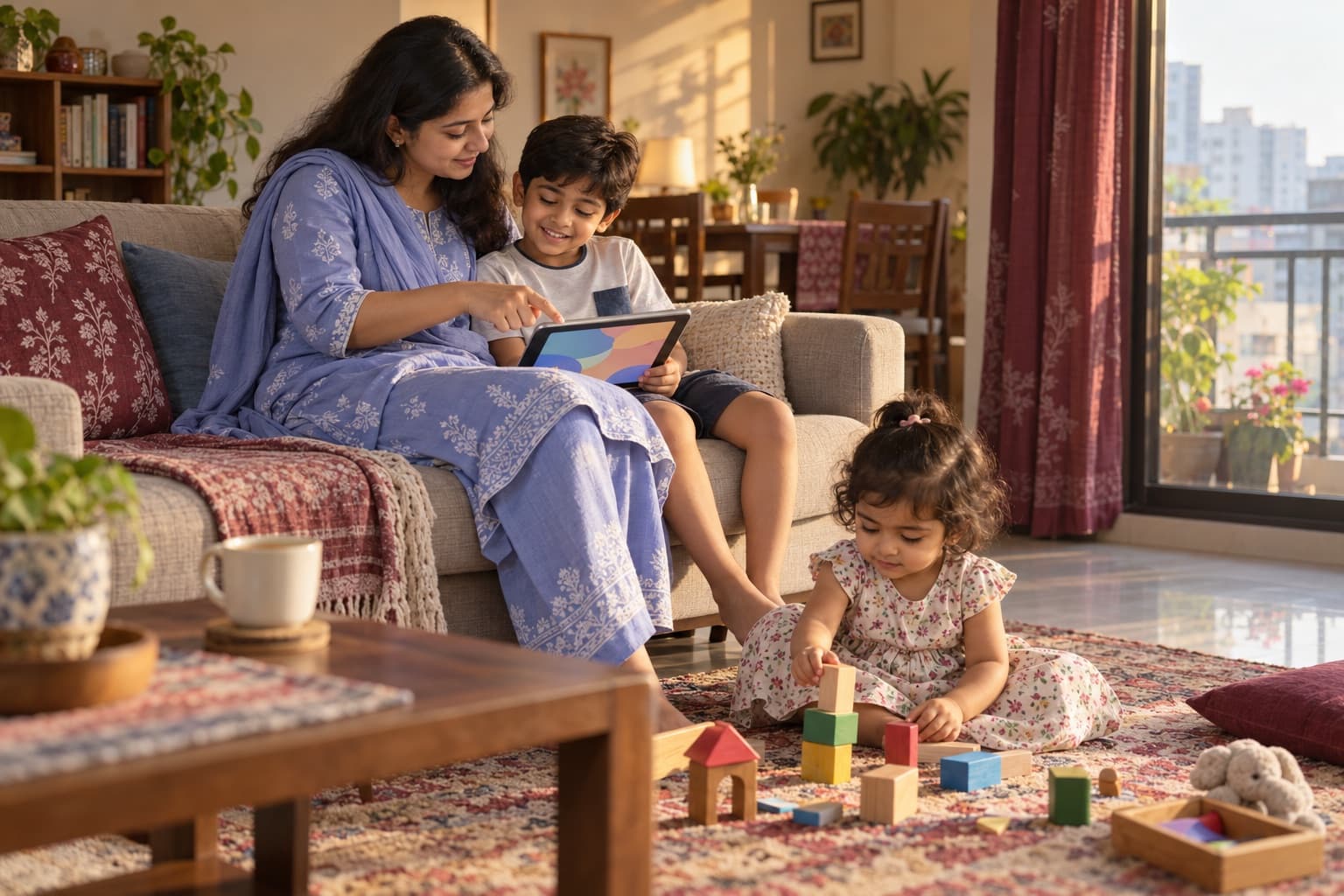
- YouTube Kids, for younger children. Download the app, sign in as the parent and make a profile for your child's age group. For the youngest, allow only videos and channels you approve, turn search off, and set the timer so the app stops by itself.
- A supervised YouTube account, for children who have outgrown YouTube Kids: through the family controls, you pick a content level for the main app that fits their age.
- Restricted Mode, for teenagers and shared devices. In the YouTube app, look for it in the general settings, and switch it on in every app, browser and TV your child uses. It hides many unsuitable videos, not all.
Whatever the level, turn autoplay off so one video doesn't roll into the next, and use the menu beside a video to block a channel, or to stop it being recommended. For help choosing what to watch, not just what to block, see YouTube and cartoons for kids.
Which settings suit each age: 3–5, 6–9, 10–12 and 13–15
Parental controls by age look very different: young children need a small, safe space chosen by you; teenagers need practice making their own choices while you're still close by. These are rough guides, and maturity matters more than age.
| Age | Controls that often suit | What to talk about |
|---|---|---|
| 3–5 years | A shared device in the living room, YouTube Kids with approved videos only, app pinning, no app store | “We watch together.” “If something looks scary, come to me.” |
| 6–9 years | A child profile, a daily limit and night downtime, approval for every app, YouTube Kids for their age | Why some apps wait until they are older; what to do if a stranger messages them |
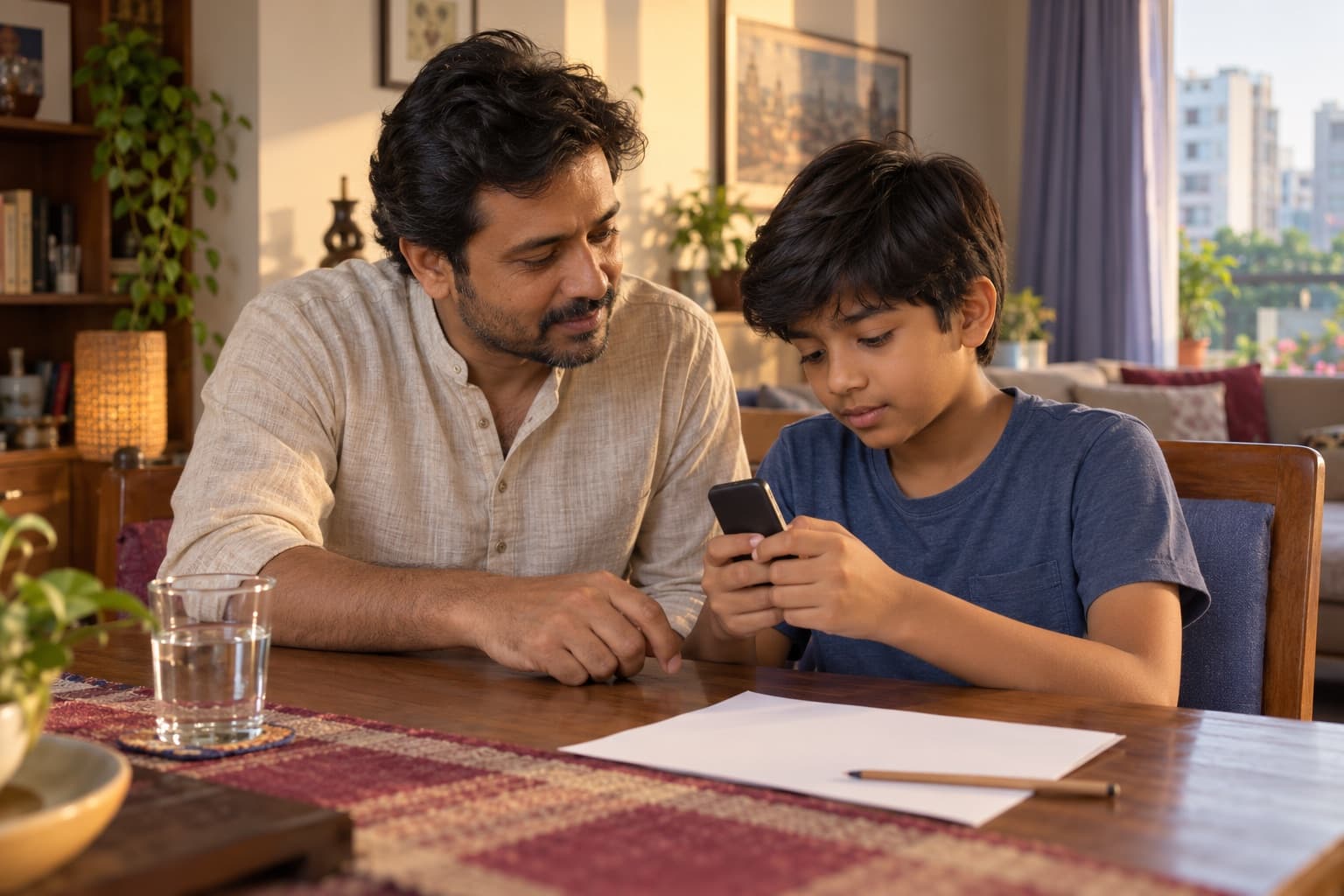
| 10–12 years | A supervised account, supervised YouTube or Restricted Mode, purchase approval, safe search, charging outside the bedroom | Group chats, sharing photos, spending in games; agreeing limits together |
| 13–15 years | Fewer locks, more agreements: night downtime and purchase approval often stay, filters loosen, privacy settings checked together | Privacy, online friends, pressure to send photos; what you'll check, when and why |
Whatever the age, base the daily limit on screen time by age: no screens under 18 months except video calls with family, only good-quality content watched with an adult at 18–24 months, at most 1 hour a day of good-quality content from 2 to 5, and from 6, consistent limits that protect sleep, active play, homework and family time.
Teenagers and privacy: from locks to agreements
Teenagers need some privacy to grow up, and secretly checking their phone usually costs more trust than it buys. Be open about what stays on and why, and agree in advance when you would look more closely, such as a real safety worry. Many families keep a few rules into the mid-teens, like charging outside the bedroom and asking before buying. Many apps also set a minimum age, often 13, when what a parent can control may change, so check before that birthday.
How to explain the settings to your child, and why talk matters more
Parental controls go down better when they feel like safety, not punishment. Children also find ways around them: a friend's phone, the Wi-Fi at coaching, a new browser. So the most important rule isn't a setting: if anything online scares, upsets or confuses them, they turn it off and come to you, and they won't be in trouble for telling.
What you might say
- These settings aren't because I don't trust you. They're like a seatbelt.
- If you see something scary or rude, turn it off and tell me. You won't be in trouble.
- The tablet stops at seven. That's the tablet's rule, and mine too.
- As you show me you can handle it, we'll loosen the rules together.
- Let's go through the privacy settings together, so you decide who sees your posts.
- If a rule feels unfair, tell me why. We can change it at our next family talk.
Write the main rules down together, and look at them again every few months; a family screen agreement shows a simple way to do it. For the wider safety talk, from strangers to mean messages, see child online safety.
In a Bangladeshi home: one family phone, the TV and mobile data
In many Bangladeshi homes, the hard part isn't the menus but everyday life:
- One family phone. Before a young child watches on your phone, pin the video app or turn on Guided Access, so they can't reach your messages, photos or mobile-wallet app.
- YouTube on the smart TV. The TV counts too: switch on Restricted Mode or a kids profile in its YouTube app, and set a PIN for downloads if it offers one.
- Grandparents and house help. If they hand over a phone to calm a child, show them the kids app and timer, and share the rules kindly, not as a complaint.
- Mobile data. Router controls only cover your home Wi-Fi; the phone's own controls work on data too, so set those first.
- Class and coaching groups. Set messaging apps so only contacts can add your child to groups, and talk about who is in each one.
- A gift or hand-me-down phone. Reset it, and set it up as a child's phone before your child uses it.
If you are still deciding whether your child needs a phone of their own, start with what age a child should get a phone.
A 7-day plan to set up your child's devices
Set up one thing a day, note what happens, and compare after a week.
- Day 1: List every device your child uses, including the TV and relatives' phones.
- Day 2: Set up the family controls on the main device, with a passcode only you know.
- Day 3: Add YouTube Kids or Restricted Mode, and turn autoplay off on every screen.
- Day 4: Turn on purchase approval and app-store age ratings, and log out of payment apps on shared phones.
- Day 5: Set the night downtime and a charging spot outside the bedroom, for adults' phones too.
- Day 6: Sit down with your child, show them what's on, and agree the “turn it off and tell me” rule.
- Day 7: Look back: what slipped through, what caused arguments, and which settings you can loosen or tighten.
When settings aren't enough: signs it's time to get help
Most screen problems can be eased at home with settings, rules and talk. Get help if you notice any of these:
When to get help
- Your child is frightened, sleeps badly or keeps returning to something they saw online for more than a week: talk to their doctor or the school counsellor.
- Your child gets around every control, uses a secret account or a second phone, or takes money for apps, again and again for weeks: talk to their doctor, a child psychologist or the school counsellor.
- Bullying, threats or a sudden change in your child after time online: believe your child, act the same day, and call 999 if they are in danger now.
- Someone online asks your child for photos or money, or to meet: don't pay or send anything, never copy or forward a child's private photo, keep the messages, and block and report the account. Report it at the local police station, or call 999 if your child is in danger now.
- Your child talks about hurting themselves, or has done so: stay calm and close, call 999 if they are in danger now, otherwise see a doctor the same day.
ParentMind helps you note what happens each day, such as screen time, sleep and mood, and see patterns over a week or two. See how ParentMind works.
Questions parents ask
What are the best parental controls for a child's phone?
For most families, the free controls built into the phone are enough: Google's family controls on Android and Screen Time on an iPhone. They cover daily limits, night-time downtime, app approval, age filters and purchase approval. Add YouTube Kids or Restricted Mode and safe search. Paid apps add features, but none replaces talking with your child.
How do I set up YouTube Kids?
Download the YouTube Kids app, sign in as the parent with your own account, and create a profile for your child's age group. For young children, allow only videos and channels you approve, and turn search off. Then set the timer, turn autoplay off and protect the settings with a passcode.
Can my child turn off Restricted Mode on YouTube?
Often, yes. On an ordinary account, anyone using the app can switch it off in the settings, and it must be turned on separately in each app, browser and TV. A supervised account through the family controls keeps the content level in your hands. Either way, check now and then, and keep talking about what they watch.
Can kids get around parental controls?
Yes, many can, especially older children: a friend's phone, someone else's Wi-Fi, a new browser, or changing the phone's clock. That doesn't make controls pointless; they still cut down on accidental exposure, especially for younger children. But it's why your best protection is a child who will tell you when something goes wrong, without fear of losing the phone.
Do parental controls work on mobile data as well as Wi-Fi?
It depends where they are set. Controls on the phone itself, such as Google's family controls, Screen Time and YouTube Kids, work on Wi-Fi and mobile data alike. Controls on your home router only cover your own Wi-Fi, so they stop working when your child switches to data or another network. Set up the phone first, then the router.
At what age should I stop using parental controls?
There is no fixed age. Most families loosen controls step by step through the early and mid-teens, as a child shows they keep rules and bring problems to you. A few rules, like charging outside the bedroom at night, often stay longer by agreement. The aim is a teenager who can manage alone by the time they leave home.
This article is general information, not medical advice. For health worries, talk to a doctor; if someone is in danger, contact your local emergency number.